
Printing Edible Images on a Canon TS705: What Worked for Us
First-hand notes from printing cake wraps on our own Canon TS705: loading, settings, margins and the three things that jammed it.
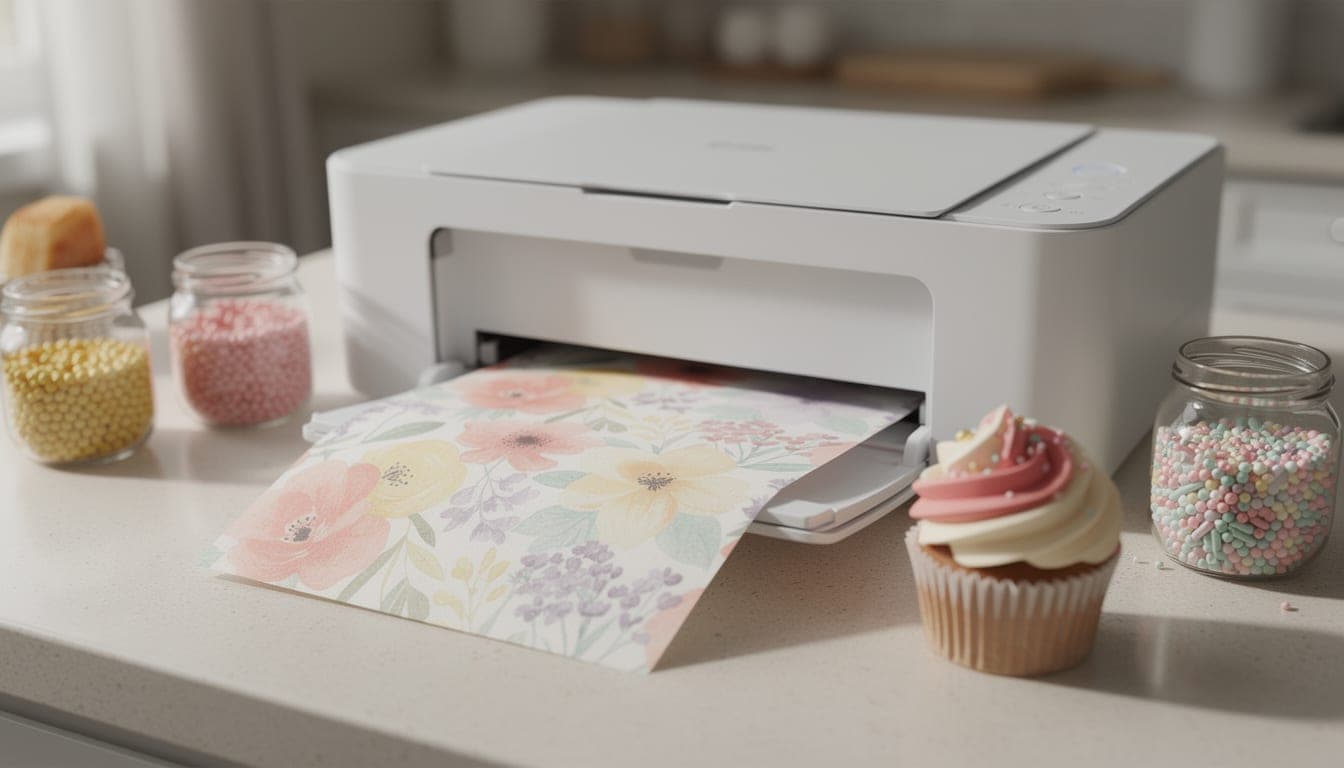
Canon TS705 edible printing: what we found
On 7 October 2026 we printed real cake wraps on our own Canon TS705. The printer is sold in edible kits that come with edible ink. This is what worked for us, and what went wrong, in plain terms.
The short version: use the rear tray, feed one icing sheet at a time, choose a matte photo paper type, print at the highest quality and at 100% scale, and do a plain-paper test before you risk a sheet. It is our experience on one printer, not the manufacturer’s instructions. Check your own printer’s manual and your sheet supplier’s advice too.
Loading the sheet
Use a printer for edible ink only. It is a widely given recommendation, and it is sensible: once an ink has gone through a printer you would rather not mix it with another. If you are choosing a printer, ink and sheets, our guide to edible printing supplies covers the options.
- 1
Use the rear tray
We fed icing sheets (frosting sheets in the US) from the rear tray, not the front cassette. - 2
One sheet at a time
We never stacked them. Load a sheet, print, take the print out, then load the next. - 3
Check which side prints
The icing side is the side you want printed on, not the backing. Printers differ in which way up rear-tray paper goes, so work it out on plain paper first (see the test section below). - 4
Peel-tab end first
Many icing sheets have a clear plastic strip across one end with no icing on it. Feed that end into the printer first.
Settings and margins
These are the print dialog choices we used for icing sheets.
| Setting | What we used | Why |
|---|---|---|
| Paper type | A matte photo paper type | This is the setting that worked for our icing sheets. Your printer’s list of paper types may be named differently. |
| Quality | Highest | We wanted the best detail for photos. |
| Scale | 100% / Actual size | The wrap is sized to the cake. Any scaling makes it the wrong length. |
| Borderless | Off | It can rescale the artwork to run past the paper edge. |
| Fit to page | Off | It resizes the whole sheet to the printer’s idea of the page. |
The margins we use
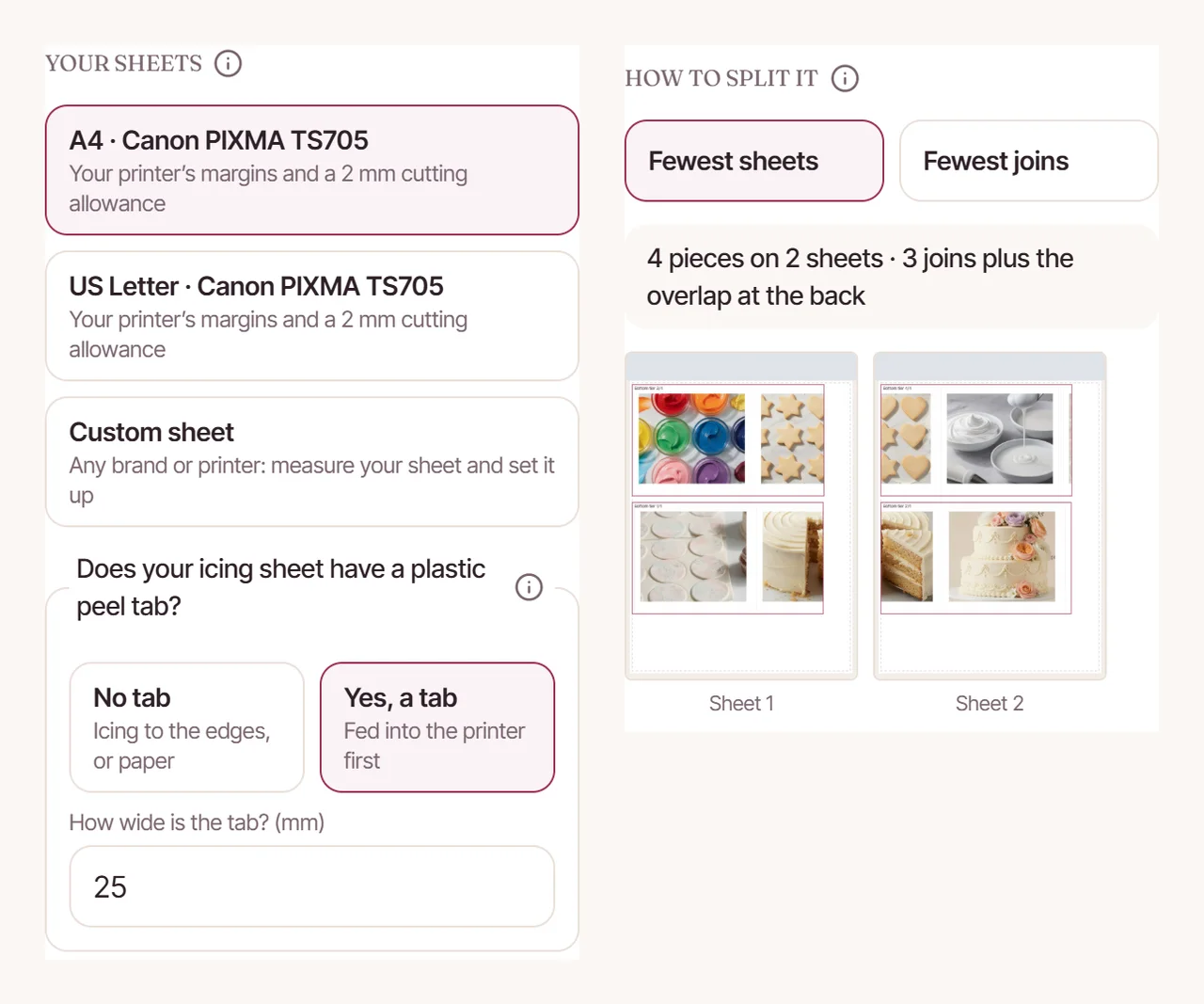
The cake wrap designer plans A4 sheets for the TS705 with a top margin of 3 mm, a bottom margin of 5 mm and side margins of 3.4 mm. It keeps the strips inside those, so the printer never has to squeeze or move the picture.
Why borderless and Fit to page make sizes wrong
A cake wrap only works if it comes out at the size you planned. The wrap’s length is worked out from your cake, so a print that is even slightly bigger or smaller will not meet at the back, or will overlap too much. “Fit to page” and borderless printing both let the printer change the size or position of the artwork. Printing at 100% is the main thing that keeps a wrap the right length. The designer’s PDF has a 50 mm check line on every sheet, so you can hold a ruler to it and see whether the print is true.
Our guide to printing an edible cake wrap on A4 covers how the strips are split across sheets.
What jammed it
We had three separate problems. They are what we saw, not a full list of everything that can go wrong.
| What happened | What we took from it |
|---|---|
| A glossy-backed sheet slipped and jammed. | Feed one sheet at a time. If it will not grip, stop rather than forcing it. |
| A sheet fed while damp left the rollers struggling to grip. | Use a dry sheet. A damp one will not feed cleanly. |
| The printer kept jamming until a roller part that we had removed during cleaning was refitted. | If you clean inside the printer, note what you take out and check it all went back before the next print. |
Printing over the peel tab also smeared the ink, so we moved the strips clear of it. That is why the designer now asks whether your sheet has a tab. It starts at 25 mm, but measure your own sheet and enter that. If a sheet jams, clear it carefully following your printer’s manual and start again with a fresh sheet. Our guide to edible wrap problems covers what to do after printing.
Test on plain paper first
An icing sheet is too fiddly to waste. We print the designer’s test print on ordinary paper first, and use it three ways.
- Measure the 50 mm check line. If it is not 50 mm, check the scale before you print on icing.
- Wrap it round the cake. Cut it and see whether it meets. It shows a wrong cake measurement for free.
- Check the direction. Your pencil arrow shows which side printed and which end went in first.
If colours look patchy or have stripes on the real sheet, run the printer’s nozzle check on plain paper. The plain-paper result shows whether the printer is laying ink down evenly before you try another icing sheet.
Using a different printer
The TS705 is the printer we use, not the only one that can work. If you print on another model, the designer has a Custom sheet option where you enter your own printer’s margins. Look in the printer’s manual for its minimum margins, enter them, and the strips are planned inside them. Everything else in this guide (the plain-paper test, one sheet at a time, 100% scale, peel tab first) still applies.
If you are printing cupcake toppers rather than wraps, see our guide to printing edible cupcake toppers at home. To work out how long your wrap needs to be, use the free cake wrap size calculator.
Lay out the strips, say whether your sheet has a peel tab, and print sheets planned for your printer’s margins. A tool for CakeyTops members; start a trial to try it.
Frequently Asked Questions
Can I print edible images on a Canon TS705?
It is the printer we use, and it is sold in edible kits that come with edible ink. We fed icing sheets one at a time from the rear tray with a matte photo paper type. Follow your kit supplier’s instructions as well.
What print settings should I use for icing sheets?
We used a matte photo paper type, the highest quality, and 100% (Actual size). We turned off Fit to page and borderless printing, because both can change the size of the artwork.
Why does my printer jam on icing sheets?
We had three causes: a glossy backing that slipped, a sheet that was damp when fed, and a roller part left out after cleaning. Feed one sheet at a time and keep sheets dry.
Should I use a separate printer for edible ink?
It is a widely given recommendation to keep a printer for edible ink only. Check your ink supplier’s advice before you decide.
Can I use a different printer with the cake wrap designer?
Yes. Choose the Custom sheet option and enter your own printer’s margins. We plan sheets for the Canon TS705 by default.
Use the tool from this guide
Open the relevant CakeyTops tool and put the advice above to work straight away.
Keep reading
How to Print an Edible Cake Wrap on A4 Icing Sheets
A cake wrap is longer than any sheet, so it prints in pieces. Here is how the pieces overlap, where the joins go, and the print settings that stop a wrap coming out the wrong size.
GuideEdible Cake Wrap Problems: Won’t Peel, Bubbles, Too Short or Misaligned
A troubleshooting guide for icing sheet cake wraps: stuck backing, bubbles, a wrap that comes up short, a join that misses and smeared ink.
GuideBest Edible Printing Supplies for Cake Toppers (What You Actually Need)
If you want clean edible toppers without wasting sheets and ink, this is the shortlist: the right printer setup, the right paper, and the few supplies that actually make a difference.